Table of Contents
- 1. Introduction: The Manual Entry Headache
- 2. Why Xero Doesn’t Support Direct PDF Uploads
- 3. Step-by-Step: How to Upload PDF Bank Statement to Xero
- 4. Using the Xero Bank Statement Import Template
- 5. How to Import Transactions into Xero via CSV
- 6. Converting to Specialized Formats: How to Import OFX File into Xero
- 7. Common Errors During Xero CSV Import
- 8. Security and Data Privacy
- 9. Conclusion
1. Introduction: The Manual Entry Headache
Managing business finances in Xero is supposed to be simple, but the moment you receive a monthly bank statement as a PDF, the "simplicity" often disappears. Many small business owners and accountants find themselves spending hours typing every single transaction into their accounting software. Not only is this exhausting, but it is also prone to human error.
If you are looking for a way to import PDF to Xero free, you have likely realized that Xero lacks a "Direct PDF Upload" feature for bank reconciliations. In this guide, we will show you the fastest, most accurate way to bridge that gap using smart conversion tools.
2. Why Xero Doesn’t Support Direct PDF Uploads
Xero is a powerful tool, but it requires structured data to function. A PDF is essentially an "image" of text; the computer sees characters but doesn't understand which number is a "Date" and which is a "Balance." To how to import bank statement in Xero, the data must first be converted into a format Xero can read, such as CSV, OFX, or QIF.
3. Step-by-Step: How to Upload PDF Bank Statement to Xero
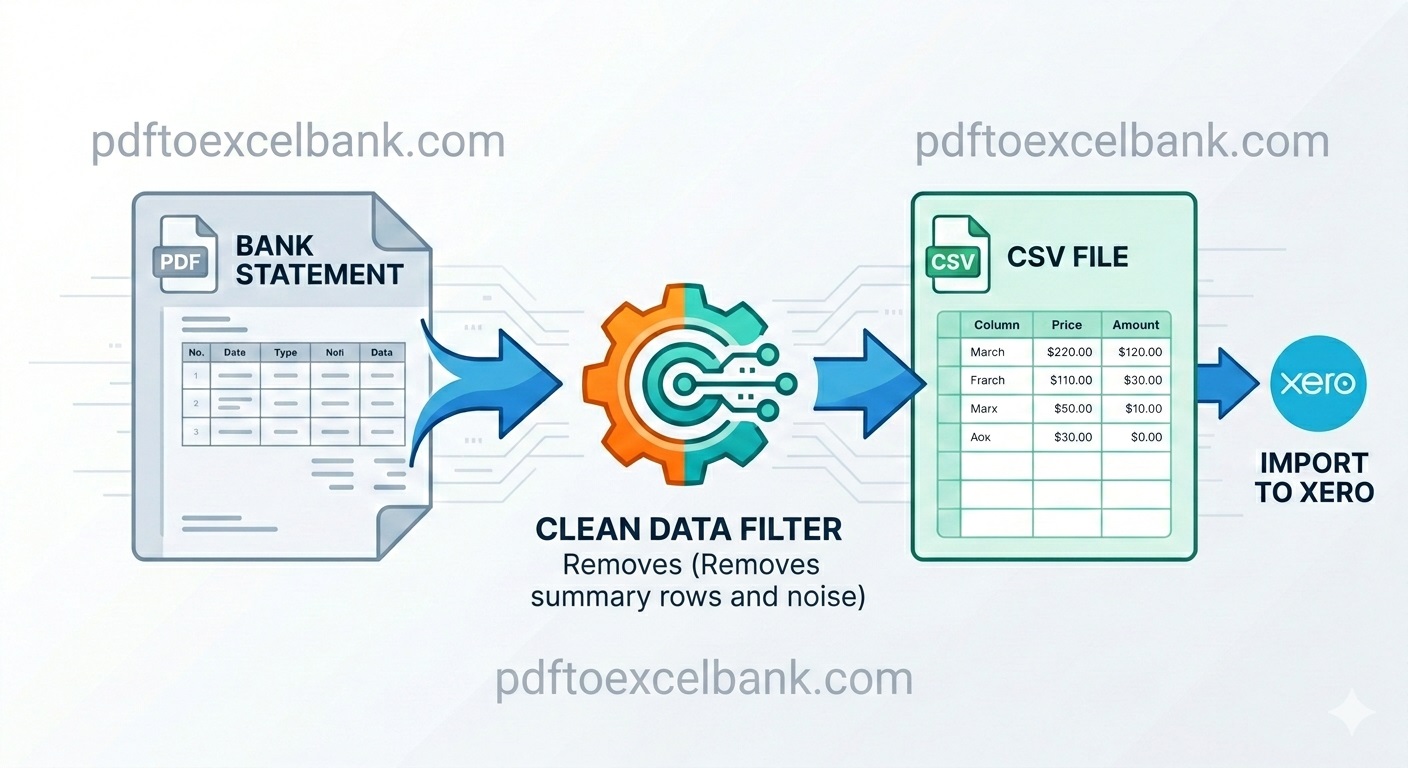
Since Xero cannot read the PDF directly, your first step is to transform that PDF into a clean Excel or CSV file.
Step 1: Convert your Statement
Use a specialized tool like pdftoexcelbank.com. Unlike general converters, these tools are built to filter out "noise" like bank logos, summary tables, and legal footers, leaving you with just the transaction data.
Step 2: Clean the Data
Once converted, open your file. Ensure your columns match the standard banking format: Date, Description, and Amount.
Step 3: Access Xero
Log in to your Xero account, go to Accounting > Bank Accounts, find the specific account, and select Import a Statement.
4. Using the Xero Bank Statement Import Template
If your bank doesn't provide a direct feed, you will need to use a Xero bank statement import template. Xero provides a sample file that shows exactly how your data should be arranged.
- Column A: Date (Must be in a consistent format like DD/MM/YYYY).
- Column B: Amount (Positive numbers for deposits, negative for withdrawals).
- Column C: Payee/Description (The name of the vendor or customer).
Using the correct Xero CSV import template ensures that Xero doesn't reject your file during the upload process.
5. How to Import Transactions into Xero via CSV
The CSV (Comma Separated Values) format is the most common way to how to import transactions into Xero.
- Drag and Drop: In the Xero import screen, drag your converted CSV file into the upload box.
- Map the Columns: Xero will ask you to confirm which column in your file matches the "Date" field in Xero, which matches "Amount," etc.
- Review: Xero will show a preview of the transactions. Look for any duplicates before clicking "Complete Import."
6. Converting to Specialized Formats: How to Import OFX File into Xero
For those who want a more "automated" feel, the OFX (Open Financial Exchange) format is superior to CSV because it includes unique transaction IDs that prevent duplicates. If you are wondering how to import OFX file into Xero, the process is simple: download the OFX from your converter, and Xero will automatically map the fields for you.
7. Common Errors During Xero CSV Import
Even with a good Upload bank statement PDF strategy, you might run into errors. Common fixes include checking that your date format matches Xero's settings and ensuring there are no currency symbols ($ or £) inside the amount columns.
8. Security and Data Privacy
When you import PDF to Xero free, security is paramount. Ensure your conversion tool uses encrypted connections and has a clear policy on deleting your financial data after the conversion is complete.
9. Conclusion
Knowing how to import bank statement in Xero is a vital skill. By using a dedicated PDF-to-Excel converter, you can reduce hours of bookkeeping to just a few clicks. Visit pdftoexcelbank.com to start your first conversion today.